Features
The features of your Intuos include:
- Customizable ExpressKeys: Four keys on the upper corners of the Intuos allow you to set frequently used functions or keystrokes, or to simulate button clicks or modifier keys.
- Touch toggle switch: Allows you to enable or disable touch.
- USB connector: Connects your Intuos to your computer. See the Quick Start Guide that came with your Intuos for instructions on connecting it to your computer. Also see About your Intuos.
- Power LED: Lights when the Intuos is connected to an active USB port.
- Status LED: Lights when you touch the active area, or use the pen or ExpressKeys.
- Active area: The portion of the Intuos surface that detects pen and touch input. The boundaries of the active area are shown by four small dots on the corners of the device.
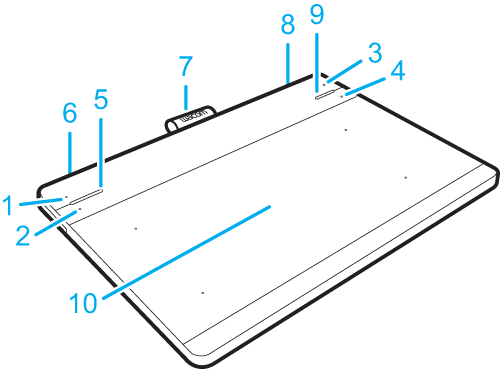
| Number | Item |
|---|---|
| 1 through 4 | ExpressKeys |
| 5 | Power LED |
| 6 | USB port (left rear corner) |
| 7 | Pen holder |
| 8 | Touch on/off switch (right rear corner) |
| 9 | Status LED |
| 10 | Active area |
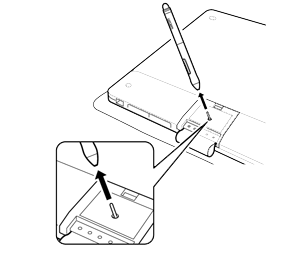
On your Intuos, extra pen nibs are fastened to the inside of the compartment cover on the back of the device. A nib removal plate is inside the compartment.
| | Do not share my information | | Cookies | | Terms of use | | Privacy Policy |