On-Screen Display Settings
You can access and adjust display settings for your device by using the Mode toggle button and the ExpressKeys.
Important: Changing color, color temperature, contrast, brightness, or backlight settings overrides the color profile used with pen display.
- Press the Mode toggle button to launch the On-Screen Display menu.
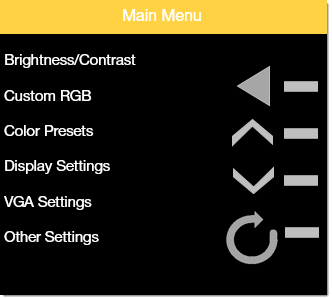
- Press the ExpressKeys next to the up and down arrows to move through the menu items.

- When the menu item you want is highlighted in yellow, press the top ExpressKey.

- If you need to go back to the previous menu, press the bottom ExpressKey.

- The settings for the menu that you selected appear. Press the up and down ExpressKeys to move through the settings.
- When the setting you want to change is highlighted in yellow, press the top ExpressKey.
- Use the up and down arrows to adjust the setting. The changes take effect immediately.
- When you are done making changes, press the Mode toggle button again to exit the On-Screen Display menu.
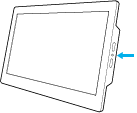 |  |
When you exit the On-Screen Display menu, you can start using the ExpressKeys as shortcuts to settings again.
| | Do not share my information | | Cookies | | Terms of use | | Privacy Policy |