Connect to your computer

Connect to your computer

Warning: Make sure to use the cables included with your pen display. Other cables may not be compatible and could damage it.. To purchase replacement cables, go to the Wacom eStore.
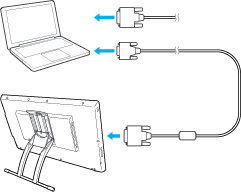
  1. Connect the device to your computer by DVI or by VGA.
  2. Illustration of a laptop and pen display connected using either a DVI cable or a VGA connection
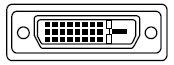
    • If your computer supports DVI, use the DVI cable to connect your device to your computer.
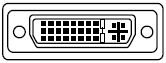
    • Illustration of a DVI port labeled to show where to connect the cable on the device
      Connect this end of the cable to your device in the DVI IN port.
      Illustration of a DVI port labeled to show where to connect the cable on the computer
      Connect this end of the cable to your computer.
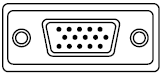
    • If your computer supports VGA, use the DVI-to-VGA cable to connect your device to your computer.
    • Illustration of a DVI port on the device labeled to show where to connect the cable to the DVI IN port
      Connect this end of the cable to your device in the DVI IN port.
      Illustration of a VGA port on the computer labeled to show where to connect the VGA end of a DVI-to-VGA cable
      Connect this end of the cable to your computer.
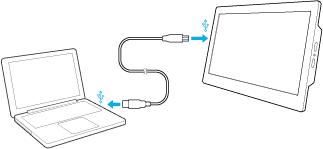
  3. Get the USB cable and plug in the USB-B end to your device. Plug in the other end to your computer.
  4. Illustration of a laptop and pen display connected using a USB-B cable

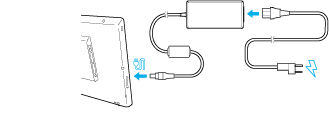
  5. Connect the power cable to the power adapter.
  6. Attach the power adapter to your device and plug in the power cable.
  7. Illustration of the power cable connected to the power adapter

Press the power button. The Power LED lights and the display screen appears.

| Do not share my information | Cookies | Terms of use | Privacy Policy