Wacom Center
Wacom Center provides you with an easy, intuitive way to access your Wacom device and settings. Open Wacom Center to:
- Customize the settings for your pen, ExpressKeys, Touch & gestures, and more.
- Create On-screen shortcuts.
- Update the Wacom driver and device firmware.
- Access User Help, Wacom Support, and Important Product Information.
- Create and edit your Wacom ID, register your device, and redeem software offers (does not apply to Enterprise devices).
The Wacom Center main screen
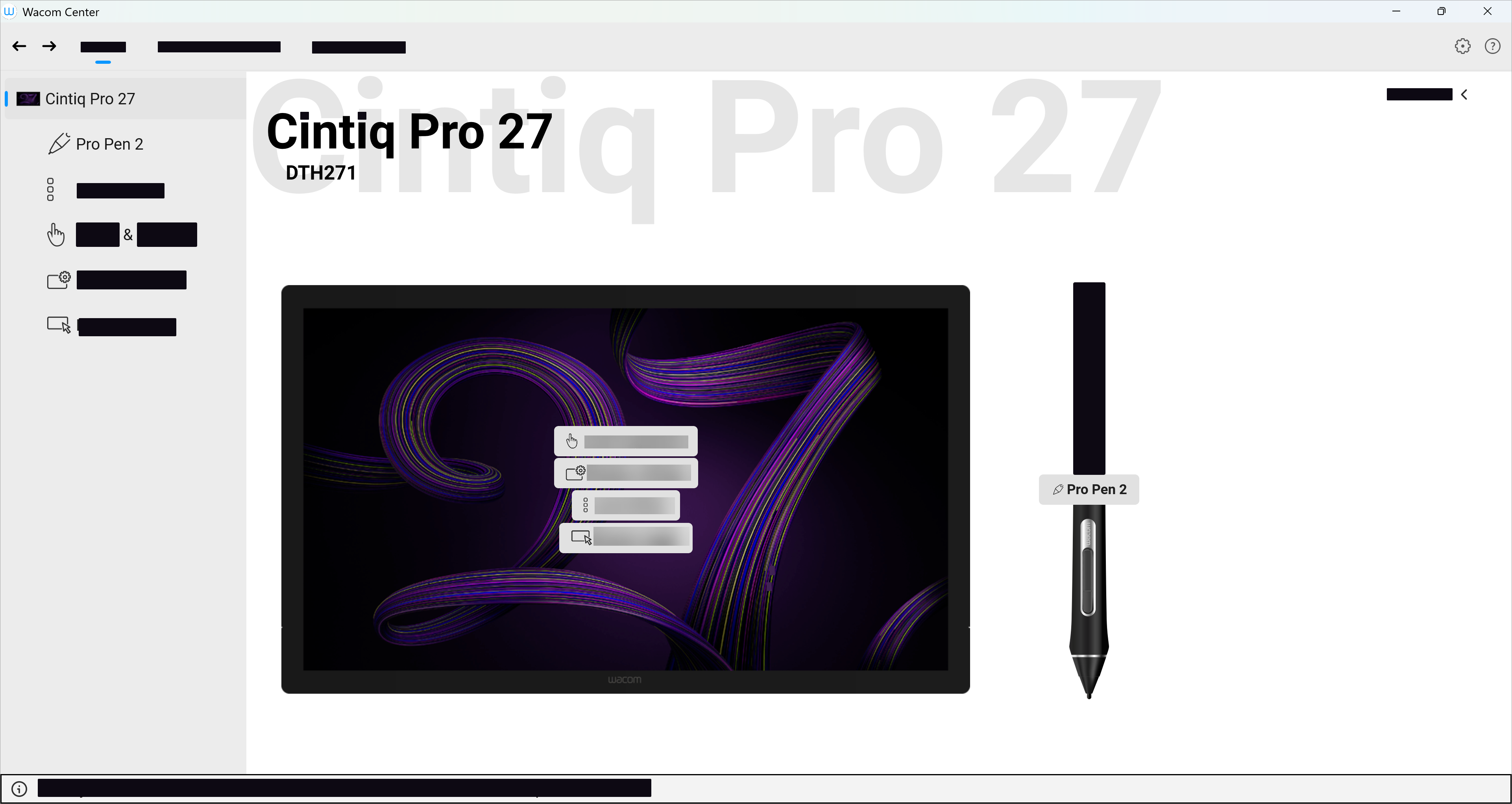
The above screenshot is for illustrative purposes; it may not match your screen.
Get to know Wacom Center
Navigation bar
The navigation bar is located at the top of Wacom Center and contains the features described in the table below.
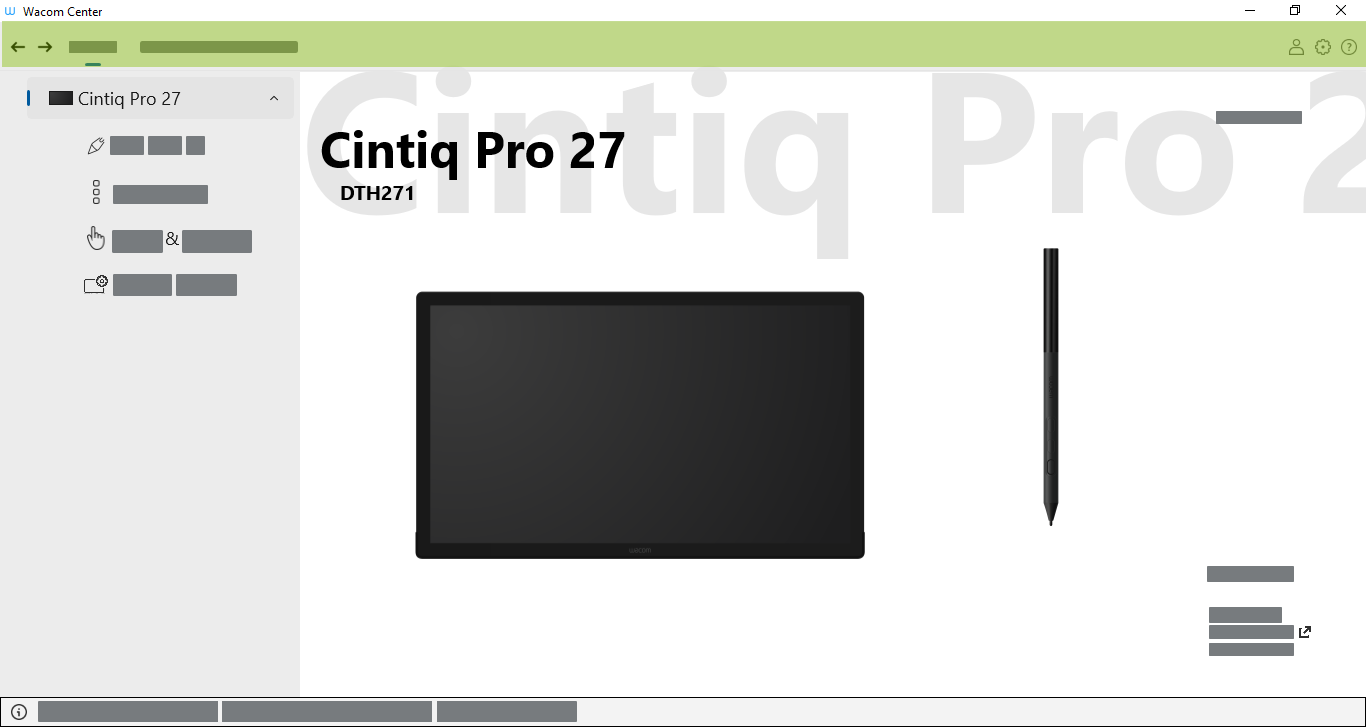
The above screenshot is for illustrative purposes; it may not match your screen.
| Forward & Back buttons | The Forward  and Back and Back  buttons move you forward one page or return you to the previous page within Wacom Center. buttons move you forward one page or return you to the previous page within Wacom Center. |
| Devices | Select Devices in the navigation bar to display a list of your connected devices in the Devices sidebar. |
| On-screen shortcuts | Select On-screen shortcuts in the navigation bar to create and/or edit Radial menus, Grid panels, and – on some devices – Pen gestures. |
| Software offers | Log in with your Wacom ID and register your device to view, download, and redeem any available software offers (does not apply to Enterprise devices). |
| General settings | Click the Global settings  icon to access the following tabs: icon to access the following tabs:
|
| Help & support | Click the Help & support  icon to access links to User Help and Wacom Support. Select "About" to find your Wacom Center version number. icon to access links to User Help and Wacom Support. Select "About" to find your Wacom Center version number.
Note: Some Help & Support features do not apply to Enterprise devices.
|
Devices sidebar
The Devices sidebar is located on the left side of Wacom Center and lists each device that is currently connected to your computer. To add a new device to this list, connect the device to your computer.
Click the drop-down arrow next to the device name in the Devices sidebar to open the device's customizable components (Pen, ExpressKeys, Touch & gestures, etc.). Click on a component to customize it in the main content area.
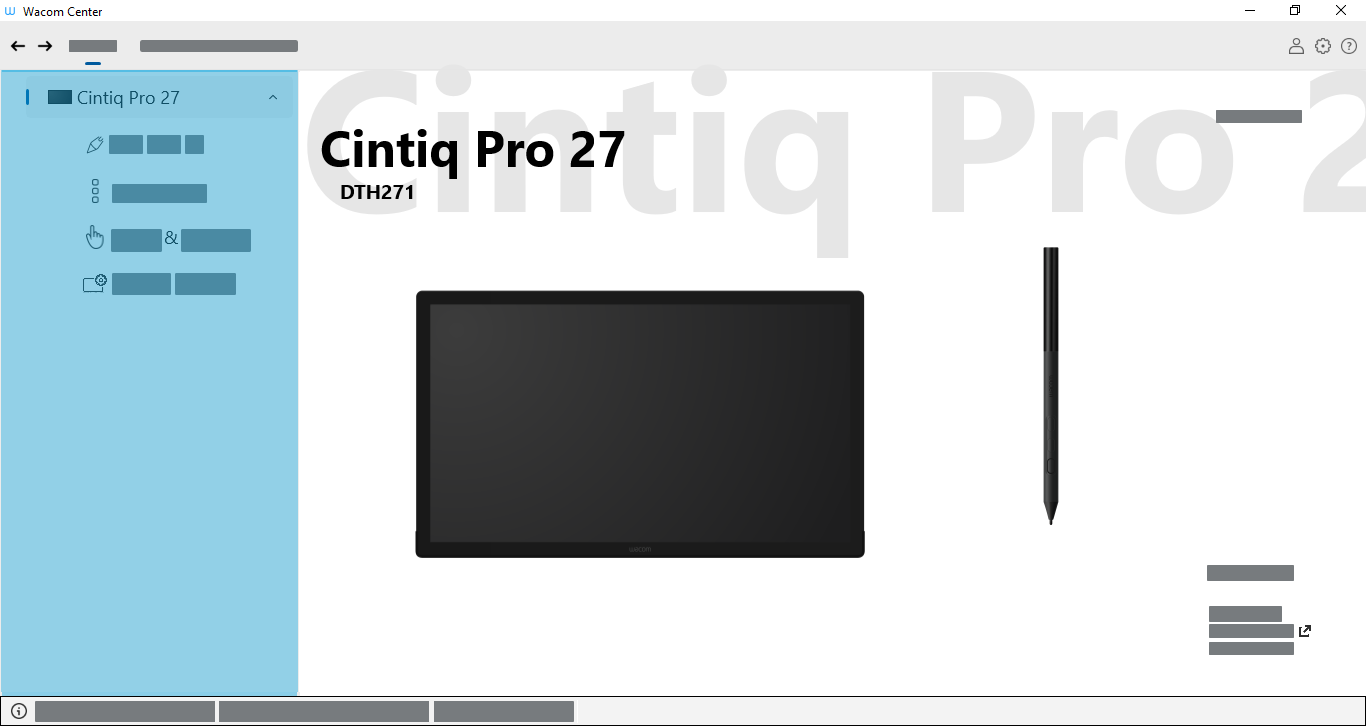
The above screenshot is for illustrative purposes; it may not match your screen.
Main content area
The main content area is located in the center of Wacom Center and is where you can customize your device settings. Select a customizable component (Pen, ExpressKeys, etc.) in the Devices sidebar to open the component in the main content area, where you can make all your customizations.
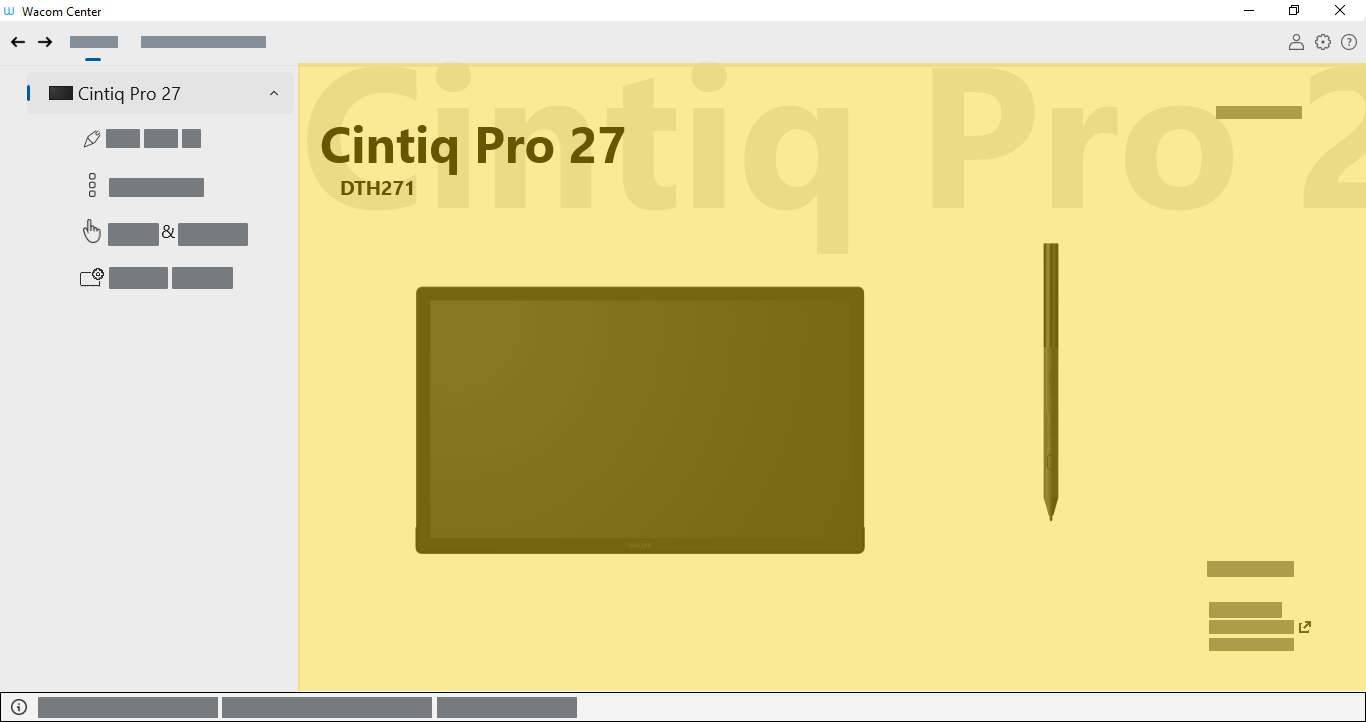
The above screenshot is for illustrative purposes; it may not match your screen.
Quick help bar
The Quick help bar  is located at the bottom of Wacom Center. When you hover over a feature, text displays in the Quick help bar describing that feature.
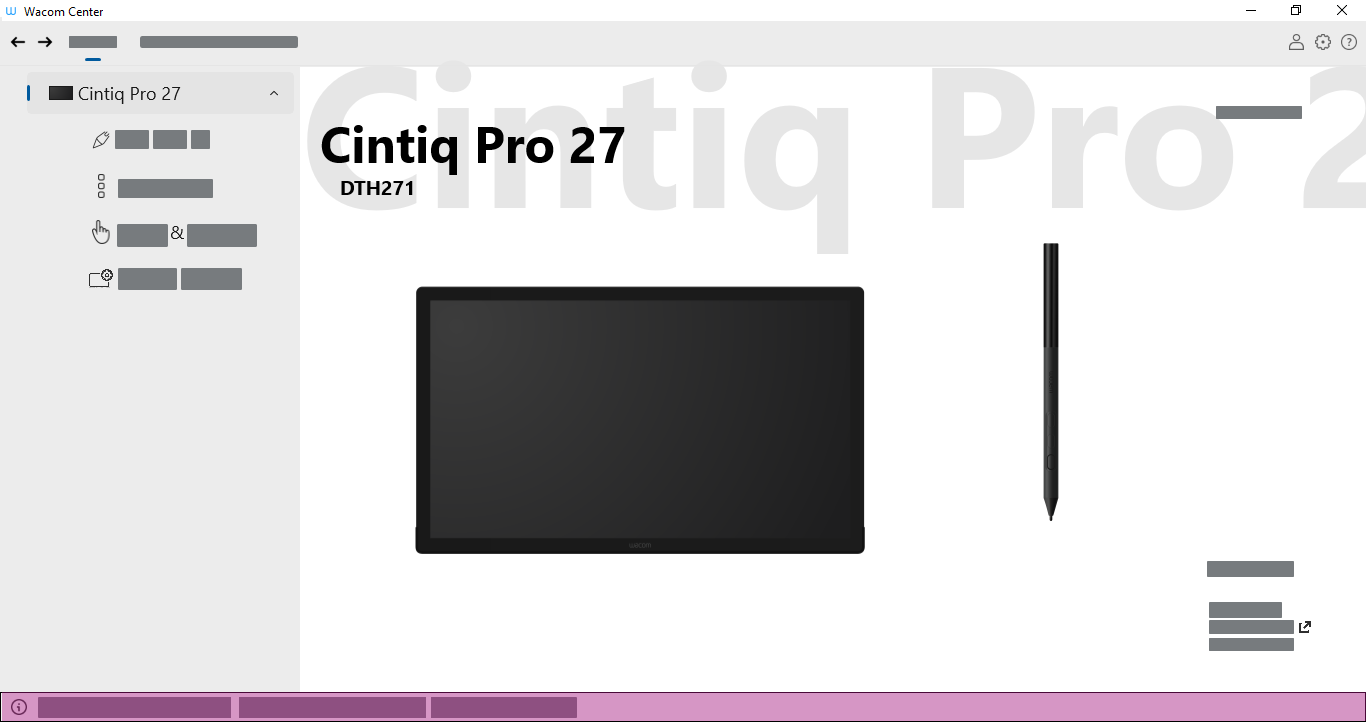
The above screenshot is for illustrative purposes; it may not match your screen.
Action sidebar
The Action sidebar opens when you click on a customizable component (On-screen shortcut key, pen button, ExpressKey, etc.). The Action sidebar is organized so that Recommended actions are displayed at the top. The Recommended actions change based on your product and the feature you are customizing.
Click a drop-down arrow next to a category name (Clicks, Keyboard, etc.) to open the actions available within that category. Select an action from the list to assign it to a customizable feature. Press the Esc key or click in a blank area of Wacom Center to close the Action sidebar.
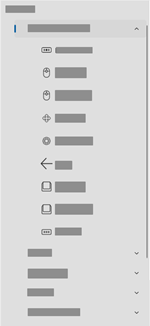
The above screenshot is for illustrative purposes; it may not match your screen.
| | Do not share my information | | Cookies | | Terms of use | | Privacy Policy |