Features of your Wacom One
Note: "Wacom One" refers to both the Wacom One S and the Wacom One M.
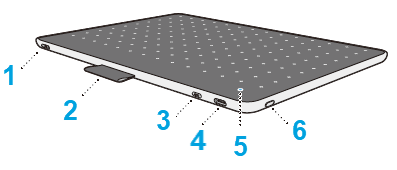
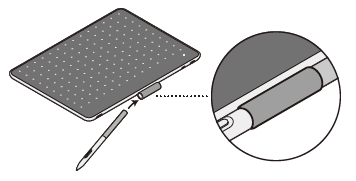
| 1 | Pen tether slot | Attach the pen to your Wacom One using the pen tether slot.
Note: The Pen tether is an optional feature, available in the Wacom eStore.
|
| 2 | Pen holder | Use the tab on the top of the device to store the pen when it is not in use.
|
| 3 | Mode button | This button is used for troubleshooting specific issues with Android devices. For more details, visit Wacom Support to search for “Android FAQs”. |
| 4 | USB-C port | Connect your device to your computer using the USB-C cable included with your device (or purchased separately on the Wacom eStore). |
| 5 | Status LED | The LED lights when the device is on. The LED also indicates Bluetooth status. |
| 6 | Power button & Bluetooth | Press the button to turn the device on and off and to connect wirelessly to a computer or Android device.
Note: When connected via USB, you do not need to use the Power button to turn the device on.
|
| | Do not share my information | | Cookies | | Terms of use | | Privacy Policy |