Preset settings groups
Preset settings groups are a library of settings groups that allow you to quickly change the actions assigned to a group of ExpressKeys or to a Dial. You can use Wacom’s predefined groups, or easily save any of your custom settings as a new Preset settings group. With Preset settings groups, you can:
- Design a single Preset settings group that can easily be applied to multiple applications when creating Application-specific settings for your ExpressKeys and Dial.
- Quickly change between Preset settings groups designed for specific workflows (color editing, drawing, painting, etc.) when working in an application.
- Easily switch all of the ExpressKeys or Dial settings from one side to the other (applies to Intuos Pro M and L only).
Note: Preset settings groups are only available on select devices.
Topics on this page
- Change ExpressKey or Dial settings using a Preset settings group
- Save your current settings as a Preset settings group
- Delete a Preset settings group
Change ExpressKey or Dial settings using a Preset settings group
- Open Wacom Center.
- Select your device in the Devices sidebar and then click ExpressKeys or Dials.
- Click the Preset button to open the Preset settings sidebar.
- Select a Preset settings group (Nudge, for example) to assign all of the Preset settings to the ExpressKeys or the Dial.
- For Intuos Pro M or L, optionally repeat these steps for the other set of ExpressKeys or the other Dial.
- Press an ExpressKey or move the Dial to activate the assigned Preset setting.
Note: The Preset button will be labeled with the setting name (Preset: Nudge, Preset: Modifiers, etc.), if all of your current ExpressKey or Dial settings match a Preset settings group's. Otherwise, the button will be labeled Preset: Custom.
Save your current ExpressKey or Dial settings as a Preset settings group
|
ExpressKeys Preset settings group example: 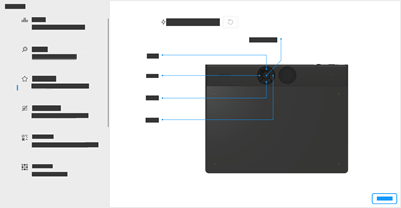 The above screenshot is for illustrative purposes; it may not match your screen. |
Tip: If you overwrite a custom Preset settings group, click the Undo  button to revert back one level of your changes.
button to revert back one level of your changes.Delete a Preset settings group
- Open Wacom Center.
- Select your device in the Devices sidebar and then click a customizable component (Pen, ExpressKeys, etc).
- In the main content area, click the Preset button to open the Preset settings sidebar.
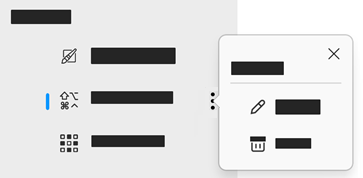
- Hover over the Preset setting name you want to rename and click the more options
 icon.
icon. - Choose Select to select the Workflow setting. Or click Delete and choose one of the following options in the "Do you want to delete this workflow" window:
- Delete the Workflow for this page only: This will delete the Workflow only for the current settings page (for example: Pen settings or ExpressKeys settings, etc.).
- Delete the Workflow for all pages: This will delete the Workflow for any settings page the Workflow applies to (for example: Pen settings and ExpressKey settings).
| | Do not share my information | | Cookies | | Terms of use | | Privacy Policy |