Connect to your computer
- Connect the Wacom Cintiq 24 or Cintiq 24 touch to a computer or Android device using one of the methods illustrated in the table below, depending on your computer's ports.
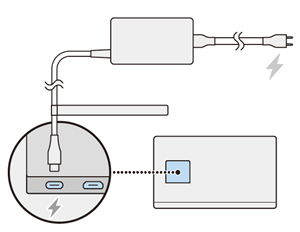
- Assemble the Power adapter and connect it to the power port on your device. Plug your Wacom device into a power source.
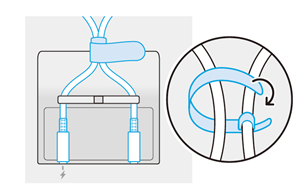
- Thread the cables around the anchors and tie them together with the cable tie.
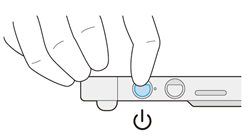
- Press the power button to turn your Wacom device on.
- Follow the instructions on the Install the Wacom driver page.
| Port(s) on your computer | Cable(s) needed to connect to your computer |
|---|---|
| USB-C DisplayPort™ Alt mode (supports video output) |
USB-C to C cable 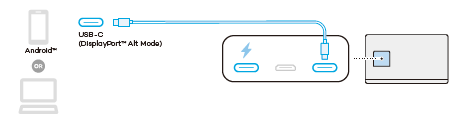
|
| USB-C port (does not support video output) HDMI port |
USB-C to C cable Mini HDMI to HDMI cable (available on the Wacom eStore.) 
|
| USB-A port HDMI port |
USB-C to A cable (available on the Wacom eStore) Mini HDMI to HDMI cable (available on the Wacom eStore) 
|
| | Do not share my information | | Cookies | | Terms of use | | Privacy Policy |