Connect to your computer
- Connect the Cintiq 16 to a computer or Android device using one of the methods illustrated in the table below, depending on your computer's ports.
 Attach the plug plate to the Power adapter and slide it down until you hear a click.
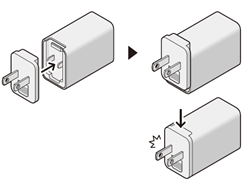
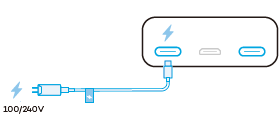
Power adapters vary based on region.- Attach one end of the Power cable to the Adapter and the other end to the USB-C power port on your Wacom device. Then plug your Wacom device into a power source.
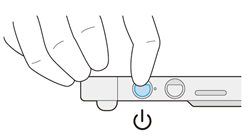
- Press the power button to turn your Wacom device on.
- Follow the instructions on the Install the Wacom driver page.
| Port(s) on your computer | Cable(s) needed to connect to your computer |
|---|---|
| USB-C DisplayPort™ Alt mode (supports video output) |
USB-C to C cable 
Important: If the power status LED is blinking quickly (or if nothing displays on the screen) after completing the previous step, complete step B to provide additional power to your Wacom device.
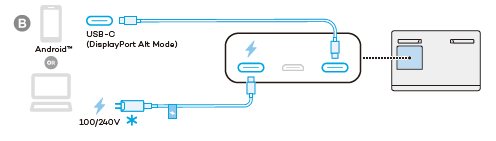 See step 2.
|
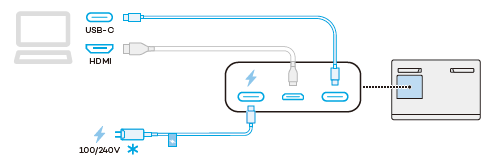
| USB-C port (does not support video output) HDMI port |
USB-C to C cable Mini HDMI to HDMI cable (available on the Wacom eStore)
See step 2.
|
| USB-A port HDMI port |
USB-C to A cable (available on the Wacom eStore) Mini HDMI to HDMI cable (available on the Wacom eStore.) 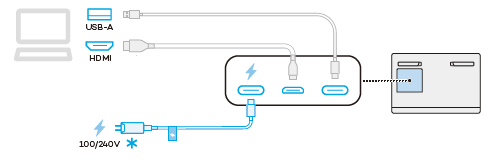 See step 2.
|
| | Do not share my information | | Cookies | | Terms of use | | Privacy Policy |