Workflow settings
Workflow settings are a type of application-specific settings that provide you with more settings options for an application. Workflow settings allow you to easily switch between different workflows – Color editing, Drawing, Painting, Photo editing, etc. – when using a customizable component (Pen, ExpressKeys, etc.) within an application.
For the same pen and Application A, you can create another Workflow called Rotate, with "Clockwise" assigned to pen button 1 and "Counter Clockwise" assigned to pen button 2.
When you work in Application A with your pen – you can select the Editing Workflow, use the pen buttons to undo and redo, then switch to the "Rotation" Workflow and use the same pen/the same 2 pen buttons to rotate an image clockwise or counter clockwise.
Topics on this page
- Create a Workflow setting
- Use Workflow settings
- Use the Workflow settings menu
- Delete a Workflow setting
Create a Workflow setting
When you create a Workflow setting, it applies to the currently selected customizable component (Pen button, Touch, ExpressKeys, etc.) for the currently selected application (Photoshop, Krita, etc).
- Open Wacom Center.
- Select a customizable component in the Devices sidebar (pen, ExpressKeys, etc.).
- Select an application in the Application-specific settings list at the bottom of Wacom Center. If no applications are listed, click the plus
 icon to add one.
 - Click the arrow
 to open the Workflow settings menu and select + New.
 - On the Workflow set window, create a Name for the Workflow and optionally select an Icon. The Workflow will be populated with the current settings. Any additional modifications will update the Workflow.
Use the Workflow settings
- Open Wacom Center.
- Select your customizable component in the Devices sidebar (pen, ExpressKeys, etc.).
- In the Application-specific settings list at the bottom of Wacom Center, click the arrow to open the Workflow settings menu.
- Select the Workflow you want to use from the menu.
- To switch to a different Workflow settings group: click the arrow again and select another Workflow setting from the menu. Or, select a Workflow setting from a pinned menu.
To edit a Workflow settings group: make your changes to the currently selected Workflow setting; the changes will automatically be applied and saved to the Workflow.
Use the Workflow menuThe Workflow menu displays a list of your Workflows for the currently selected customizable component (pen, ExpressKeys, etc.) and application. You can launch the Workflow settings menu by clicking the arrow Use the |
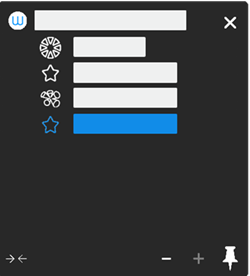 The above screenshot is for illustrative purposes; it may not match your screen. |
 Pin icon on the Workflow menu to Pin the Workflow settings menu to a display screen and use it to conveniently switch between different workflows. Assign "Launch Workflow menu” to a Pen button (as an example) and then press the pen button to display the pinned Workflow menu.
Delete a Workflow setting
When deleting a Workflow setting, you can delete it for the current settings page or for all settings pages.
- Click the arrow to open the Workflow settings menu.
- Hover over the Workflow setting you want to delete and click the more options
 icon.
icon. - Select "Delete" and choose one of the following options:
Delete workflow for this page only This option will delete the Workflow settings for the current settings page (Pen settings, for example). The Workflow settings will remain available for any other settings page in Wacom Center. Delete workflow for all pages This option will delete the Workflow settings for the currently selected application for all of the settings pages it is applied (Pen settings, ExpressKey settings, etc.).
 button.
| | Do not share my information | | Cookies | | Terms of use | | Privacy Policy |